Account and onboarding
Create your Teleport account with Google or email and password, make your sharing choices, then pick an onboarding path.
You need a free Teleport account to use Teleport. Your account holds your email and sign-in details. Your resume, profile and saved jobs still stay in your browser unless you turn on back up and sync. Onboarding then builds your profile so fit scores can be specific to you.
Create your account#
When Teleport is installed, the welcome page opens.
- Click Create a free account. If you already have one, click I have an account.
- Choose how to sign in:
- Continue with Google. A Google window opens. Pick your Google account and approve. Teleport receives your email address and a Google account ID, never your Google password.
- Email and password. Enter your email and a password of at least 10 characters. Very common passwords, and passwords that contain your email name, aren't accepted.
- Click Create account.
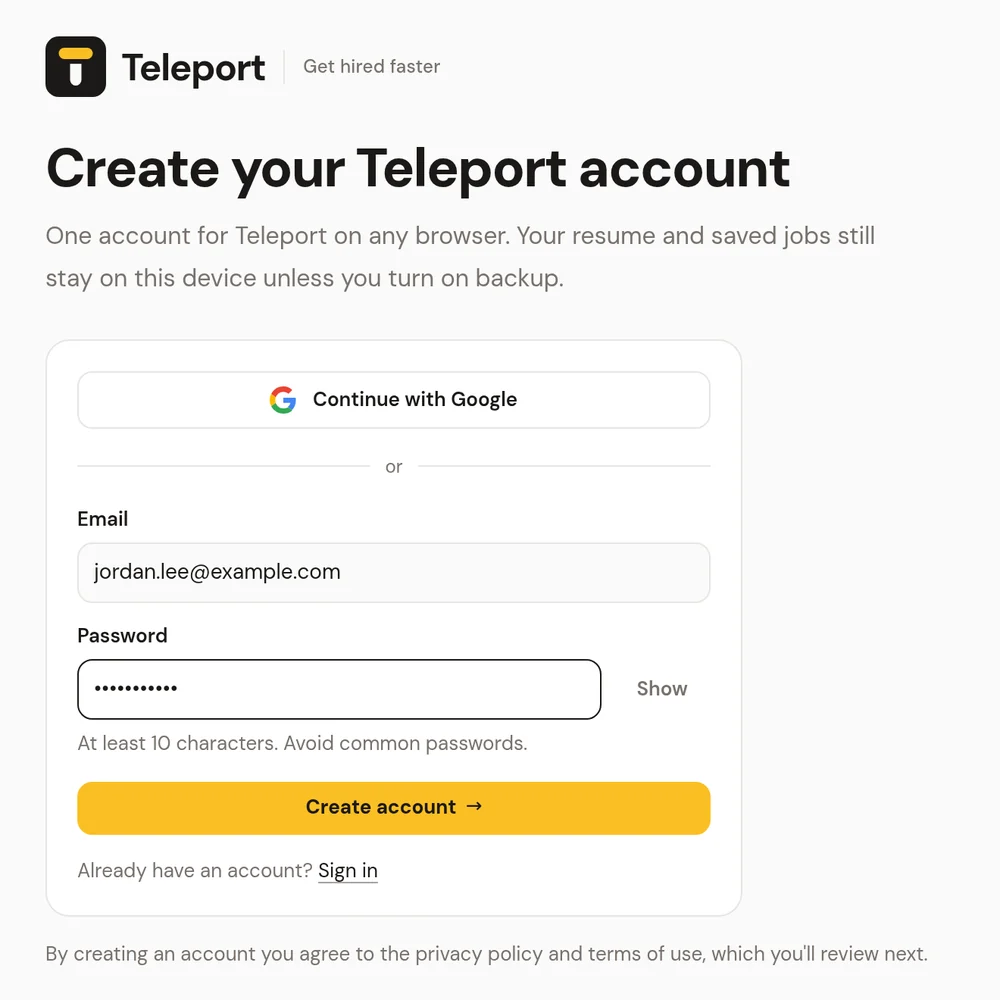
If the Continue with Google button isn't there, Google sign-in isn't switched on yet. Use email and password; you can link Google later by signing in with Google using the same email.
Note: Teleport doesn't send email yet, so there's no email confirmation step and no password reset by email. Keep your password somewhere safe. If you're locked out, get help from this help center.
Signing in on another browser#
Install Teleport, click I have an account and sign in. If you used back up and sync, your profile and saved jobs come back automatically. Anything already in that browser is kept and combined with them.
Signing out#
Open Settings → Account and click Sign out. Your local data stays in the browser unless you also check Also remove my Teleport data from this browser when I sign out, which is a good idea on a shared computer. While you're signed out, job pages show Sign in to Teleport instead of a fit score.
Your sharing choices#
After you create your account, Teleport asks how your data should be handled.
- Read and accept the privacy policy and terms of use. This is required.
- Optionally turn on Back up and sync and Include me in recruiter talent pools. Both are off unless you turn them on, and you can change them later in Privacy & data. Talent pools need sync.
- Click Get started.
Pick a starting point#
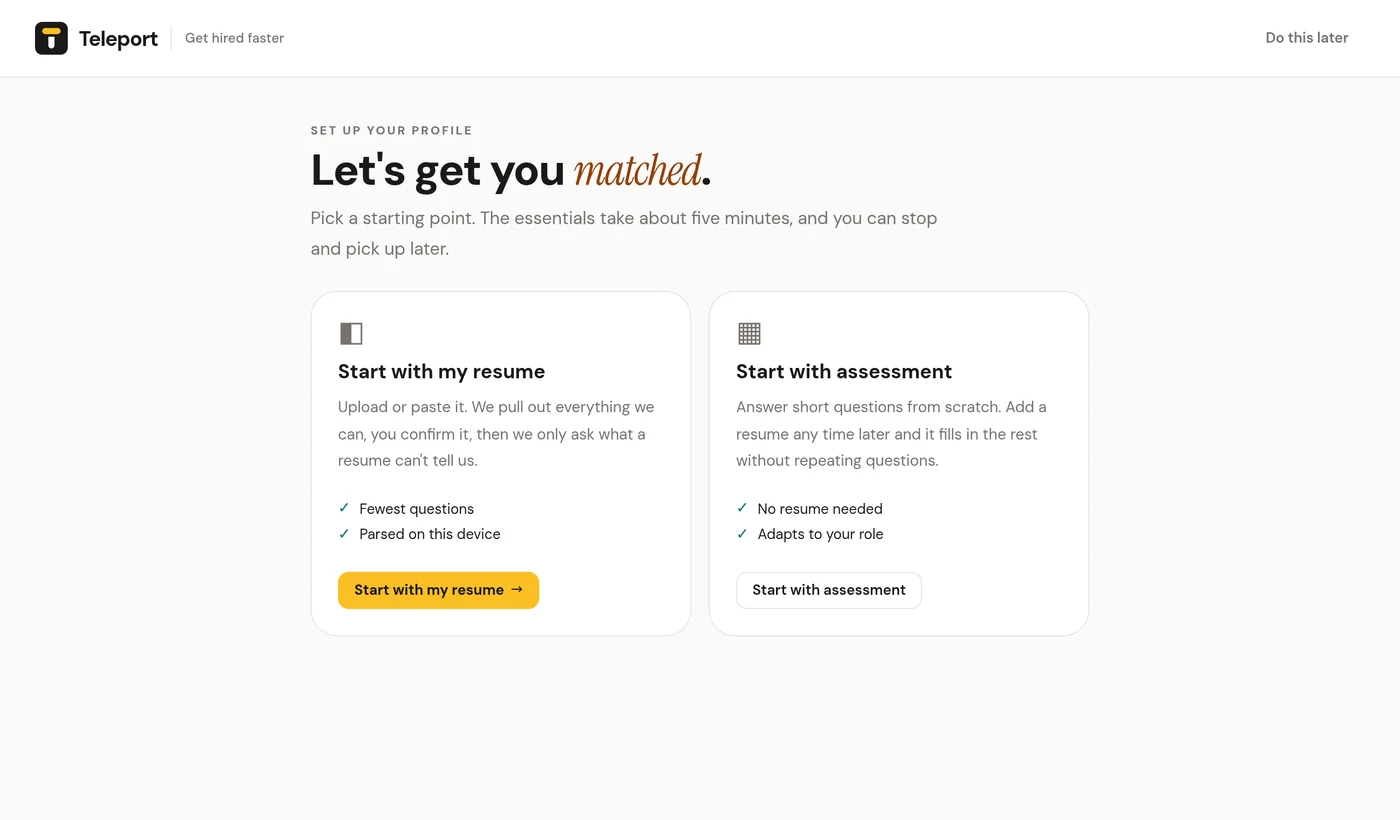
Start with my resume#
- Upload a resume (PDF, DOCX, TXT or Markdown) or paste the text. Legacy
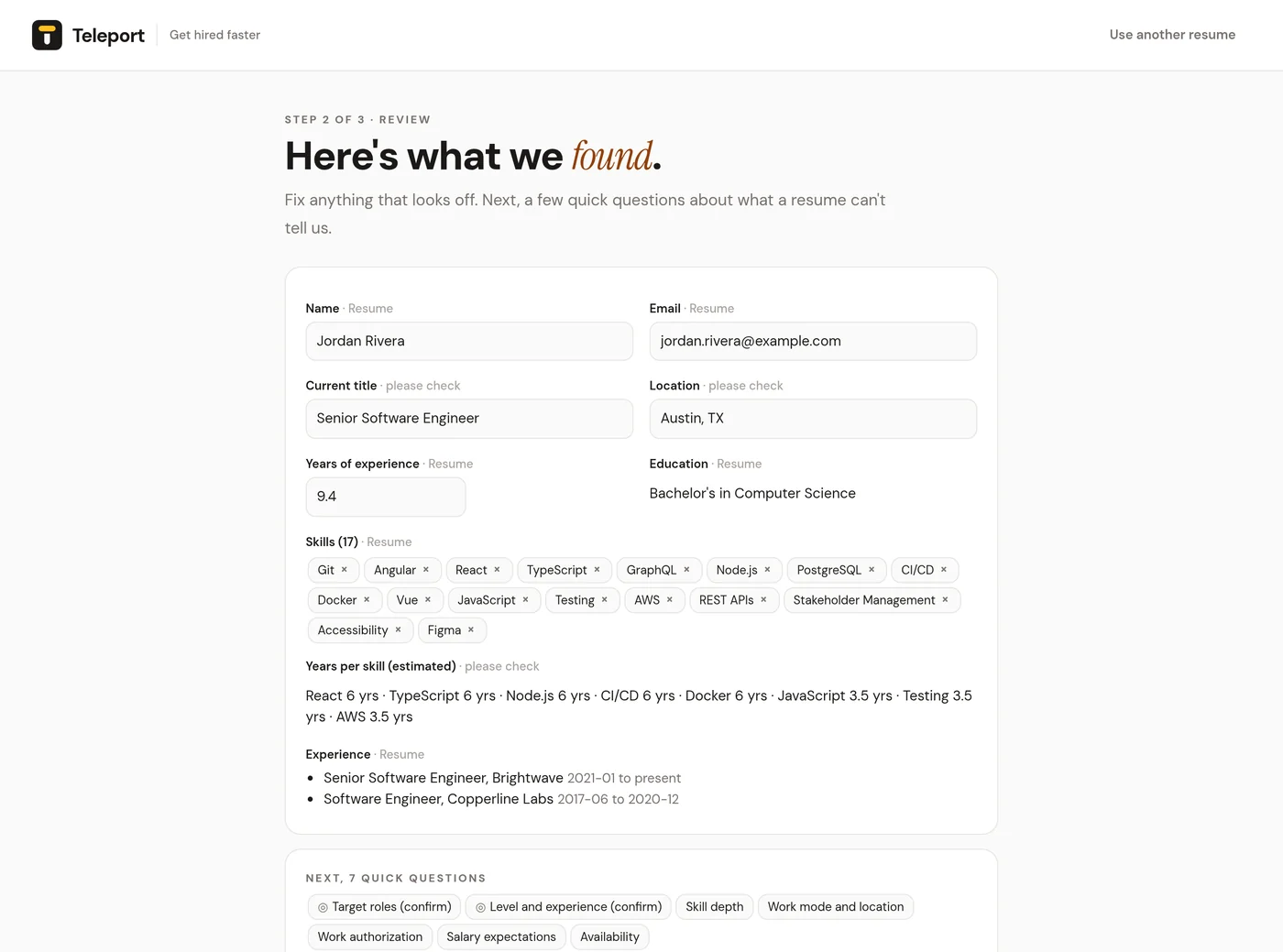
.docfiles aren't supported, so save them as DOCX or PDF first. - Teleport parses it on your device: contact details, skills, years per skill, level, role family, education, certifications, clearance mentions, languages and management experience.
- Review the result. Fields Teleport is less sure about are marked please check. Fix anything that looks off.
- The assessment then asks only about what's missing, what needs confirming, and context a resume can't give, such as work authorization or salary expectations.
Start with assessment#
Answer short questions from scratch. You can add a resume at any step with Add resume. A resume added later fills only empty fields and never overwrites an answer you gave.
How the assessment adapts#
Questions come one at a time, with Back, Skip, Continue and Finish later. The essentials come first: target roles, level and experience, core skills, skill depth, work mode and location, work authorization, salary expectations and availability. A deeper section covers tools, industries, company stage, certifications, deal-breakers, must-haves, career goals and what makes you stand out.
The questions branch on your answers:
- Your role family picks the skill, tool, certification and title options.
- Management experience is asked from senior level up, and is essential for leadership roles.
- Relocation is asked unless you want remote only.
- Sponsorship is asked only if you have a work visa or aren't yet authorized.
- Security clearance is asked in a US context, and becomes essential when your background suggests defense work.
- Languages are essential outside the US, Canada and the UK.
- Education is essential if it's missing or you're early in your career.
Finish later saves your place. Open the dashboard any time to continue.
Next#
- Profile completeness explains the meter and what to answer next.
- How job detection works shows what happens when you open a posting.