Using the recruiter dashboard
Find candidates, browse talent pools and request contact in the Teleport recruiter dashboard.
The recruiter dashboard shows pseudonymous candidates who opted in to talent pools. You need an access key.
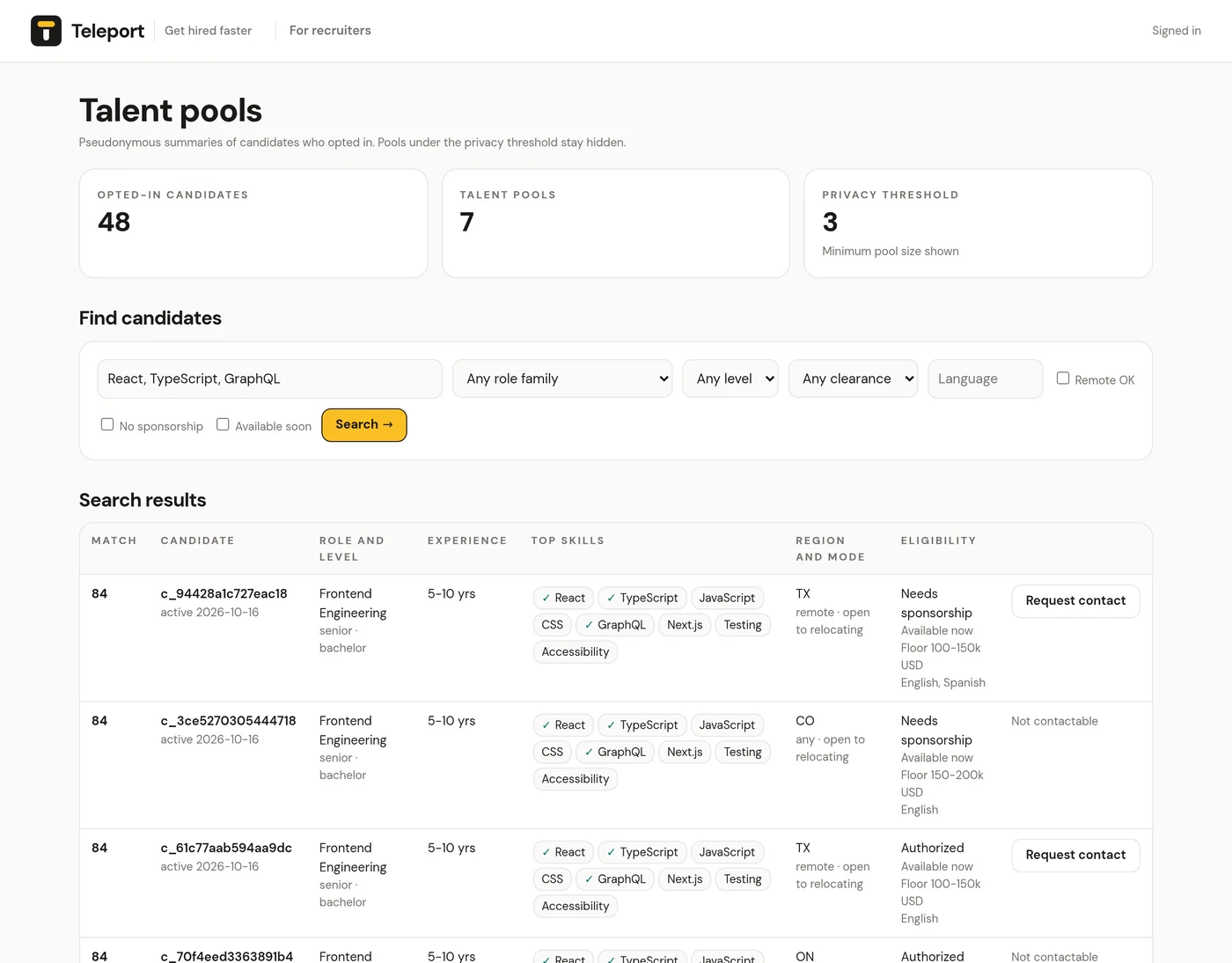
At a glance#
The top of the dashboard shows:
- Opted-in candidates: how many candidates are currently in talent pools
- Talent pools: how many pools meet the privacy threshold
- Privacy threshold: the minimum pool size shown
Find candidates#
Search across all opted-in candidates with:
- Skills, comma separated, for example React, TypeScript
- Role family
- Minimum level: Junior and up through Staff and up
- Clearance: Public trust, Secret or Top secret and up
- Language
- Remote OK, No sponsorship and Available soon
Click Search. Results show each candidate's role and level, experience, top skills, region and work mode, and eligibility, ranked by match. If too few candidates match, nothing is returned, to protect their privacy.
Browse pools#
Browse pools shows each pool as a card with its size. Open a pool to see its candidates in a table.
Request contact#
Candidates who allow contact requests show Request contact. When you click it, their name and email appear in place of the button. Others show Not contactable.
Every contact request is logged and visible to the candidate. Contact candidates only about relevant roles.
Signing out#
The dashboard keeps your key in the browser's local storage. Clear the site's data in Chrome to sign out.