Saving and managing jobs
Save jobs from any site, track their status, add notes, add jobs manually and re-score your list.
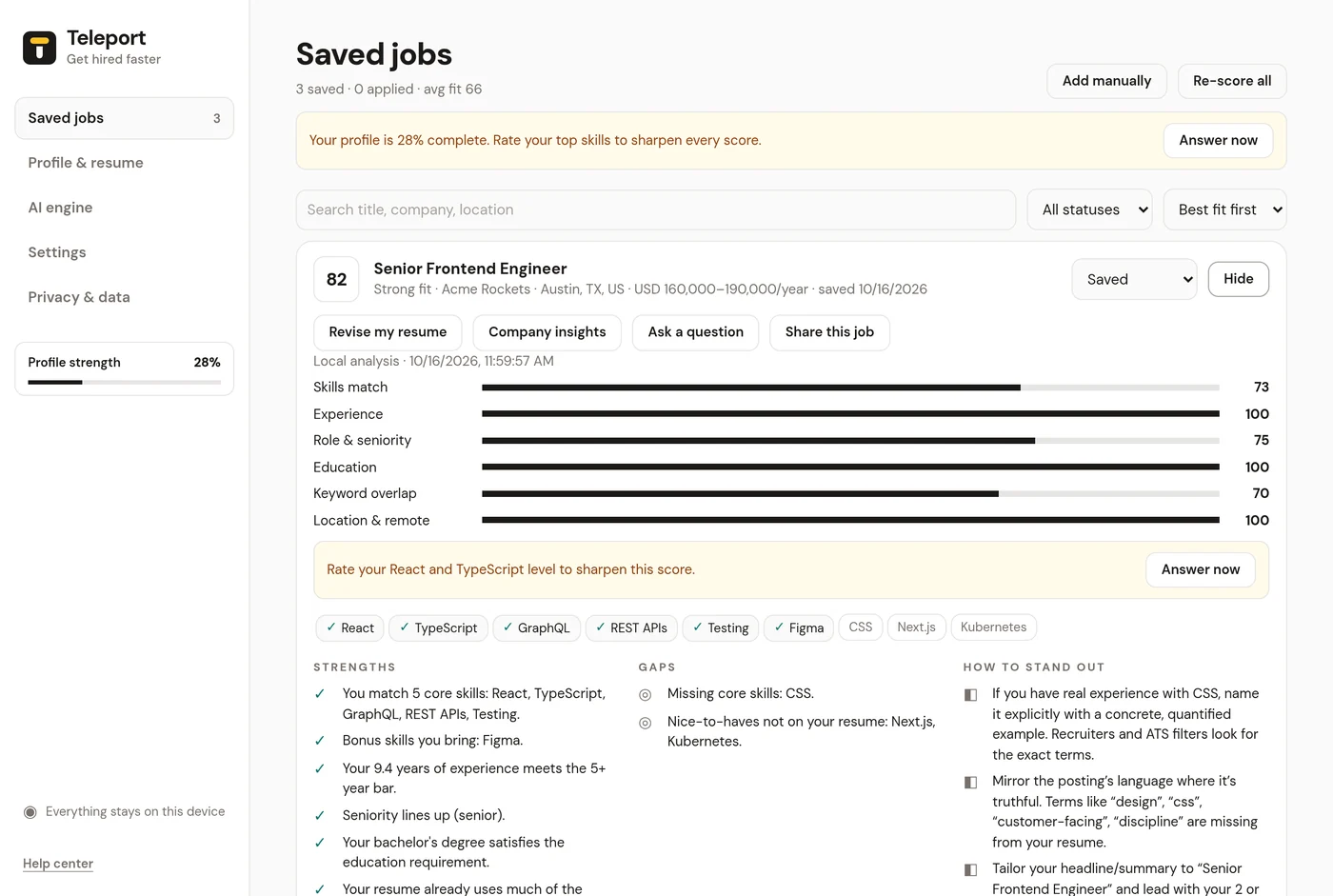
Your saved jobs live on the Saved jobs tab of the dashboard. Open it from the toolbar popup or from Open Teleport in any fit panel.
Saving a job#
- Click Add to Teleport next to the job title, or Save to my list in the fit panel.
- Select a job description anywhere and click Add to Teleport.
- Click Add manually on the Saved jobs tab and paste the title, company and description. The toolbar popup links here when a page has no job on it.
Once saved, the button changes to Saved to Teleport. Clicking it opens your list.
Managing your list#
- Status: set each job to saved, applied, interviewing, offer, rejected or archived.
- Notes: keep your own notes on each job.
- Search by title, company or location, filter by status, and sort by Best fit first or Newest first.
- Remove a job you no longer need.
- Re-score all recalculates every score after you update your profile.
Each job card shows its fit score and, when your profile is missing something that posting asks about, a nudge with Answer now.
Tools for each job#
From a saved job you can open the same tools as the fit panel: Revise my resume, Company insights, Ask a question and Share.
Where saved jobs are stored#
On your device, in Chrome's local extension storage. If you turn on back up and sync, they're also stored in Teleport cloud so you can restore them.