How job detection works
How Teleport decides a page is a job posting, where the button appears, and how to analyze selected text.
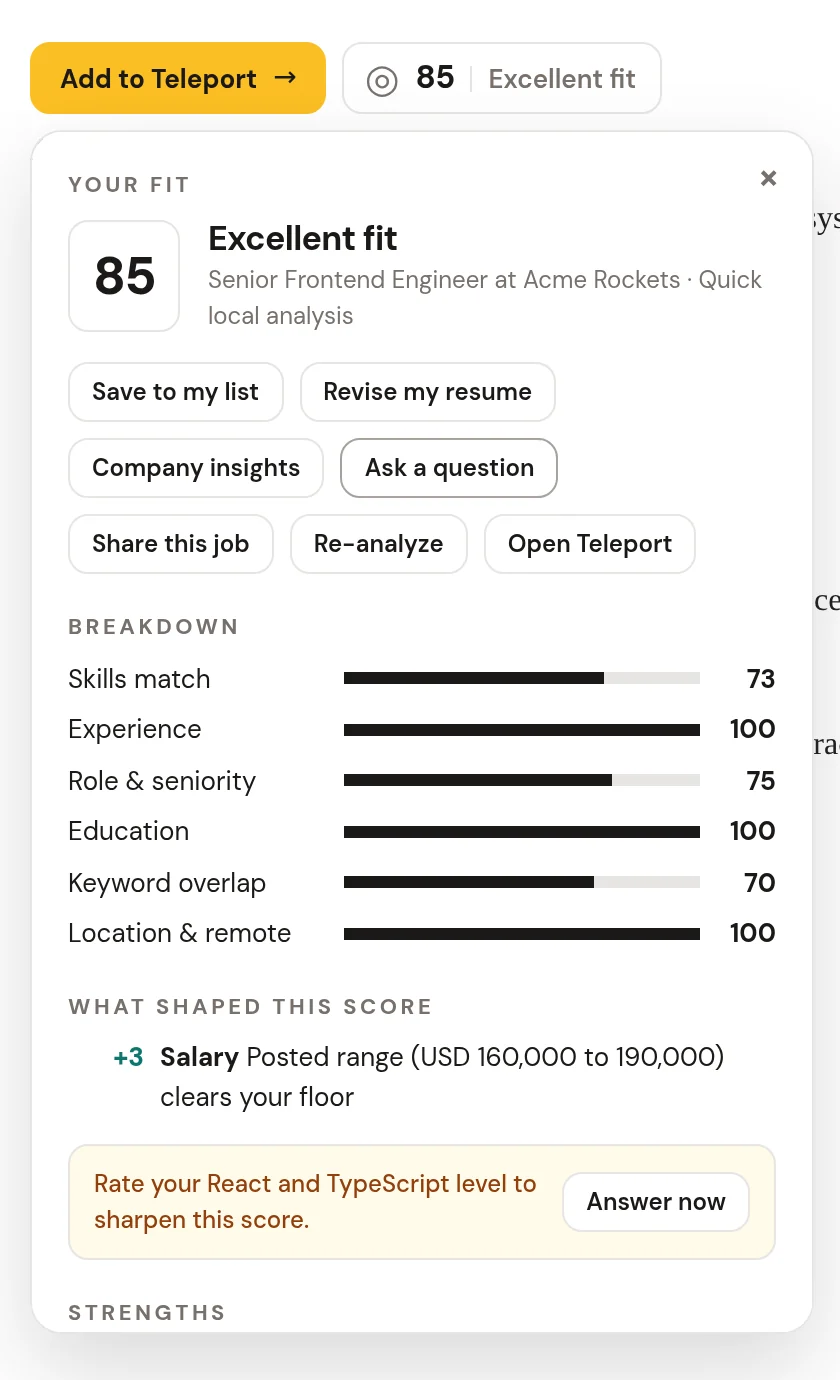
When you open a page, Teleport checks on your device whether it's a job posting. If it is, an Add to Teleport button and your fit badge appear next to the job title.
What Teleport checks, in order#
- Structured job data. Many career sites include JobPosting data in the page for search engines (JSON-LD or microdata). If it's there, Teleport uses it.
- Known job sites. Teleport has dedicated readers for LinkedIn, Greenhouse, Lever, Indeed, Workday and Ashby. See supported sites.
- Smart analysis. On any other page, Teleport reads the visible text and looks for the signals of a job description: sections such as responsibilities and requirements, a job-like title, words like "apply", salary and employment type. It discounts pages that look like search results, articles, product pages or lists of many jobs.
Teleport uses the first of these that finds a job, and all of it happens on your device. Nothing about the page is sent anywhere just because you opened it.
Where the button goes#
- Teleport places the button next to the job title.
- If the title is hidden or sits inside a pop-up, such as a sign-in dialog, Teleport shows a floating button in the corner instead. It moves back next to the title once the title is visible.
- Small embedded frames (under 400 by 300 pixels) are skipped, so ads and widgets don't get a button.
- On sites that change pages without reloading, such as LinkedIn job search, Teleport rescans when the URL or content changes.
Analyze any text you select#
Found a job description in an email, a PDF opened in Chrome, or a forum post? Select the text. If it reads like a job description (at least about 250 characters), Teleport shows Looks like a job description with Add to Teleport and a fit score. Click × to dismiss it.
Smart analysis setting#
Smart analysis is on by default. In the dashboard, open Settings and turn off Smart analysis if you prefer. With it off, Teleport only reacts to pages with structured job data and the known job sites.
You can also turn off Show the button and fit badge on pages to use Teleport only from the toolbar popup and dashboard.