Use your own AI key
Connect an OpenAI-compatible or Anthropic API key for deeper fit analysis, full resume rewrites and open-ended answers.
Teleport works without AI. Adding your own key gives deeper fit analysis, full resume rewrites, written insight summaries and open-ended answers in Ask a question.
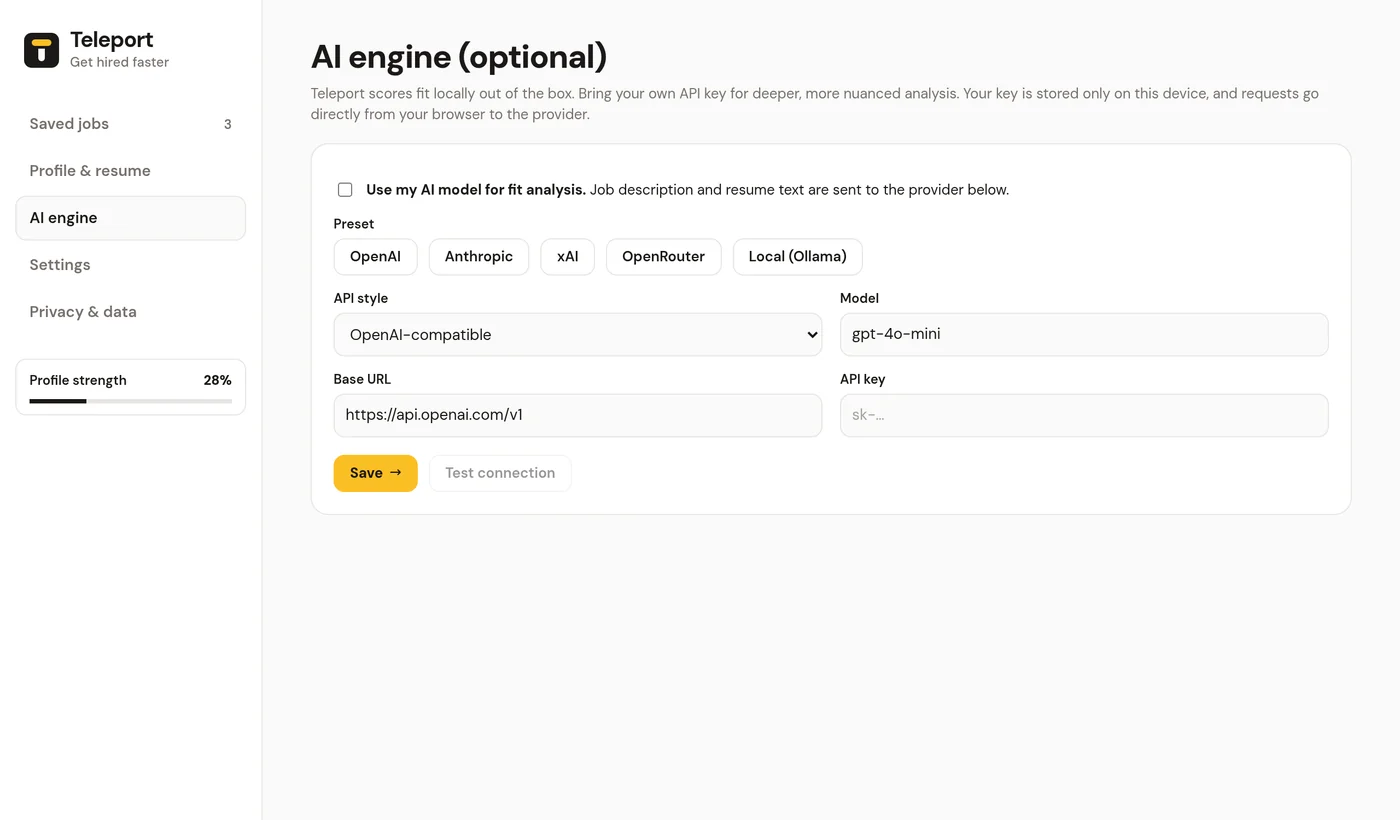
Set it up#
- Open the dashboard and go to AI engine.
- Choose a Preset, or fill in API style, Base URL and Model yourself.
- Paste your API key (not needed for a local model).
- Check Use my AI model for fit analysis.
- Click Save. Chrome asks for permission to reach that one API address. Allow it.
- Click Test connection to confirm it works.
Presets#
| Preset | API style | Default model |
|---|---|---|
| OpenAI | OpenAI-compatible | gpt-4o-mini |
| Anthropic | Anthropic | claude-3-5-haiku-latest |
| xAI | OpenAI-compatible | grok-3-mini |
| OpenRouter | OpenAI-compatible | openai/gpt-4o-mini |
| Local (Ollama) | OpenAI-compatible | llama3.1, at http://localhost:11434/v1 |
Any service with an OpenAI-compatible chat completions API should work. Set its Base URL and Model.
Your key stays on your device#
- The key is stored in your browser's local extension storage.
- It's never sent to Teleport and never synced, and it's redacted when you export your data.
- Requests go directly from your browser to your provider, under that provider's terms. Usage may be billed to you by the provider.
- Forget key deletes it.
If something goes wrong#
If an AI request fails, Teleport falls back to the local engine and shows the error. Common causes:
- The key is wrong or has no credit. Test connection shows the provider's error.
- The permission prompt was declined. You'll see "Permission to reach the AI API was declined, so the local engine will be used." Click Save again and allow it.
- A local model isn't running. Start Ollama and try again.